Docker permission denied? Match file ownership
gist Compare numeric ownership with the app's UID and GID, then change only the ownership or permissions needed for access.
You stopped about in. Jump back
contents
When Docker file permissions block reads or writes, compare the app’s UID and GID with file ownership and check the mount’s access mode before changing permissions.
I run Docker containers on my Unraid box, including Jellyfin and Audiobookshelf.
Step 1: Compare numeric ownership
In Unraid, open the container’s settings. Find the path mapping for the folder that fails. Note its host path, container path, and access mode. A read-only mapping blocks writes even when file permissions allow them. See Unraid’s container settings documentation.
The commands use an existing disposable host folder at /tmp/permissions-demo is mounted as /data in a container called permissions-demo. Substitute the paths and container name you checked.
Inspect the folder and one affected file on the host:
ls -ldn /tmp/permissions-demo
ls -ln /tmp/permissions-demo/sample-file
The -n option shows numeric ownership. Compare the UID and GID, not just the displayed account names.
Read permissions in three groups: owner, group, and everyone else.
| Mode | Owner | Group | Everyone else |
|---|---|---|---|
0755 directory |
Read, write, traverse | Read, traverse | Read, traverse |
0770 directory |
Read, write, traverse | Read, write, traverse | No access |
0660 file |
Read, write | Read, write | No access |
Directories need execute permission to traverse them. Creating or removing files needs write and execute permission on the containing directory. A sticky bit can further restrict removal. Editing an existing file needs write permission on that file. Check parent directories too. See the GNU file mode documentation.
Next, check the container’s execution identity:
docker exec permissions-demo idThis reports the identity used for the exec command. An application image may start its app under a different user. Confirm the app’s identity through its image documentation and process details before changing ownership. Docker documents the exec user option in its container exec reference.
If Docker uses user namespace remapping, container IDs map to different host IDs. Check that mapping before comparing numbers directly. See Docker’s user namespace documentation.
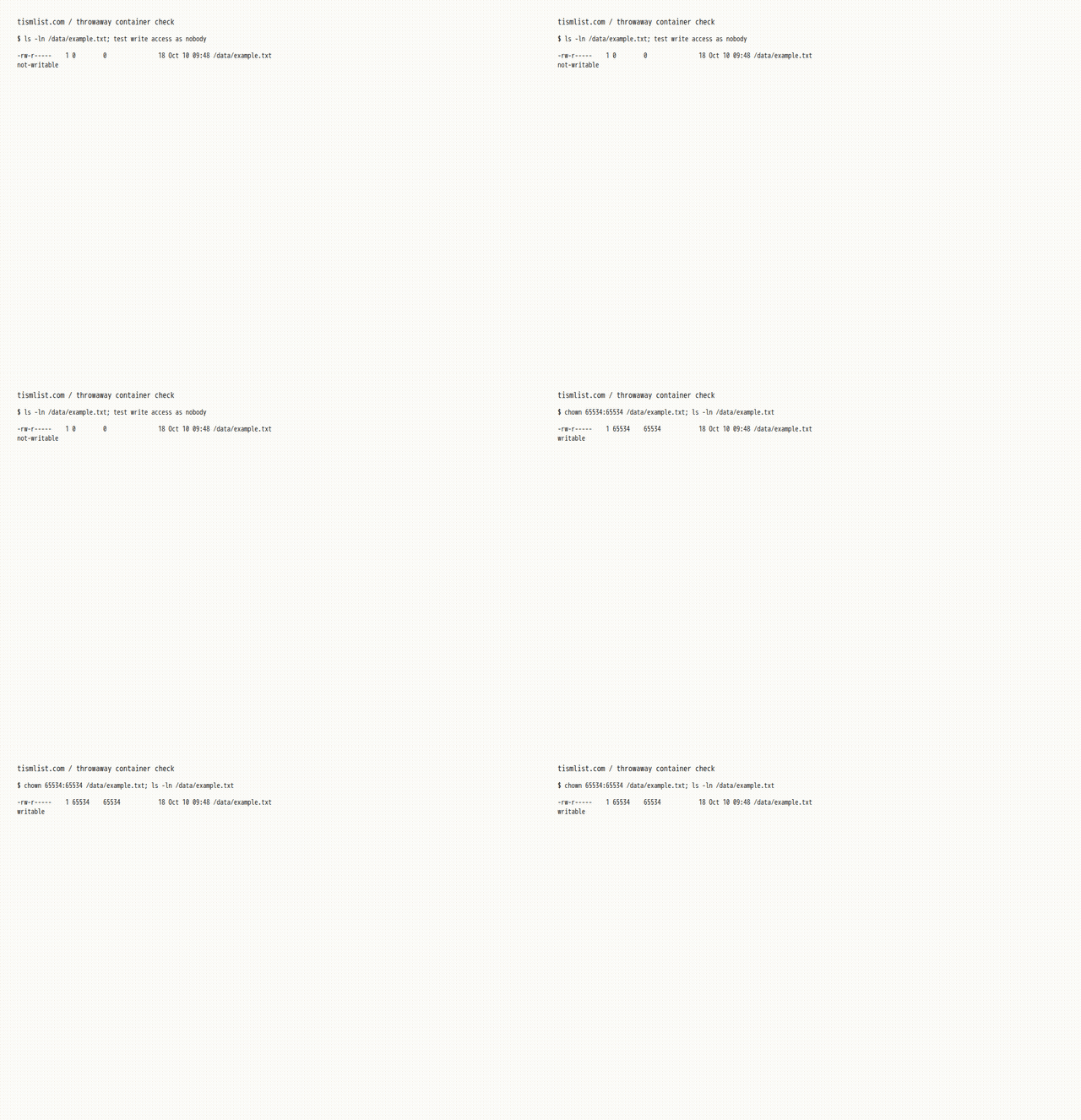
ls -ln /data/example.txt
-rw-r-----    1 0        0               18 Oct 10 09:48 /data/example.txt
Inside the Alpine test container, the file belongs to 0:0. On the host, check who the container runs as:
docker exec permissions-demo id
uid=1000 gid=1000 groups=1000
UID and GID 1000 are the exec identity to compare with numeric file ownership.
Step 2: Match the container identity
Choose the fix based on who should own or share the data.
In the Alpine test, the process running as UID 65534 and GID 65534 cannot write the file while it belongs to 0:0. After chown changes the file’s ownership to 65534:65534, that process can write it.
Replace 1000:1000 with your own IDs.
chown 65534:65534 /data/example.txt
ls -ln /data/example.txt
-rw-r-----    1 65534    65534           18 Oct 10 09:48 /data/example.txt
Use supported UID and GID settings
Some images support PUID and PGID. These are image conventions, not universal Docker settings.
For an image that documents them, set the values to the intended host UID and GID in Unraid’s container editor. Apply the change, then check ownership and access again. The PUID and PGID guide explains this approach for supporting images.
Do not assume 99:100 or 1000:1000 fits every container. Use the IDs that match the intended access.
Docker also supports --user UID:GID, but forcing it can break an image’s startup tasks. Follow the image’s instructions. The non-root container documentation describes limitations for these images, including that their PUID and PGID settings have no effect when using --user.
Change ownership only when the app should own the data
For a disposable directory intended for UID 1000 and GID 1000, change ownership:
chown 1000:1000 /tmp/permissions-demo
chown 1000:1000 /tmp/permissions-demo/sample-file
These commands change only the named objects. They do not change every file below the directory. Check affected files individually before considering a recursive change. See the GNU ownership and permission documentation.
Grant group access when several users need to write
A shared group lets files keep separate owners while granting access to other group members.
Confirm that the intended writers belong to the directory’s group, then grant group access:
chmod g+rwx /tmp/permissions-demo
chmod g+rw /tmp/permissions-demo/sample-file
chmod g+s /tmp/permissions-demo
These commands add group access. They preserve other existing permissions, so check whether access for everyone else should remain.
The setgid bit on the directory makes new children inherit its group on Linux. It does not add group write permission or change existing children. See GNU’s directory setgid documentation.
For future files, check the app’s documented umask setting. A umask removes permissions from the mode the app requests; it does not change existing files. Group inheritance alone will not help if new files lack group write permission.
Test with the intended identity
For a disposable Alpine container configured for 1000:1000, test directory access:
docker exec --user 1000:1000 permissions-demo sh -c \
  'touch /data/permission-check && rm /data/permission-check'
Use a fresh test filename. Success checks creation and deletion in that directory under those IDs. It doesn’t test existing files or SMB access.
For the real application, repeat the action that failed. Then create a new disposable file through the network share and check its ownership and mode. New files reveal whether the creator’s settings will bring the problem back.
Which approach fits?
| Approach | Best fit | Main limit |
|---|---|---|
| Supported UID/GID settings | An image that documents identity controls | Does not guarantee correct permissions on existing files |
| Shared group permissions | Several apps or network users need write access | All writers need the group; new files need suitable modes |
| Container-specific ownership | Private configuration or database files | May prevent network users from editing those files |
Avoid resetting an entire application-data share to one owner or mode. Unraid warns that changing permissions on its default application and system shares can disrupt containers or VMs. See Unraid’s default share guidance.
Common questions
Why can’t I write to appdata when my SMB user has read/write access?
SMB share access and filesystem permissions both matter. Check the connected account’s share rights, then the affected file’s ownership and mode.
A 0755 directory lets group members read and traverse it, but does not grant group write access. Prefer the app’s supported configuration method for private application files. Unraid explains share access in its security documentation.
Can I edit these files through an SMB share on Windows?
Yes, when the SMB account and filesystem permissions allow it. Changing a container’s umask alone does not grant SMB access or repair existing files. Keep the share private and grant access only to accounts that need it. See Unraid’s share security guidance.
Should every container use 99:100, or should each have its own user?
Neither choice fits every image. Follow each image’s requirements. Separate ownership suits private app data. A shared group suits folders that several apps need to change. Use documented identity settings only in images that support them.
How do you manage containers that need root?
Keep the startup identity the image requires. Some images start as root, perform setup, then run the app under another UID. Do not force a different user without checking the image’s documented support. The non-root container documentation explains the limits for supporting images.
Why not use chmod 777?
It grants read, write, and execute permission to everyone under the filesystem’s mode rules. It also leaves read-only mounts and SMB restrictions unresolved. Match the required owner or group, then grant the permissions needed for the task. See GNU’s permission mode documentation.
Browse more Unraid guides or the full guide collection.
../unraid/ every Unraid + Docker guide