How to check Audiobookshelf backup coverage
gist Check the built-in archive, map every library folder, and confirm that your backup plan covers both server state and owned audio files.
You stopped about in. Jump back
contents
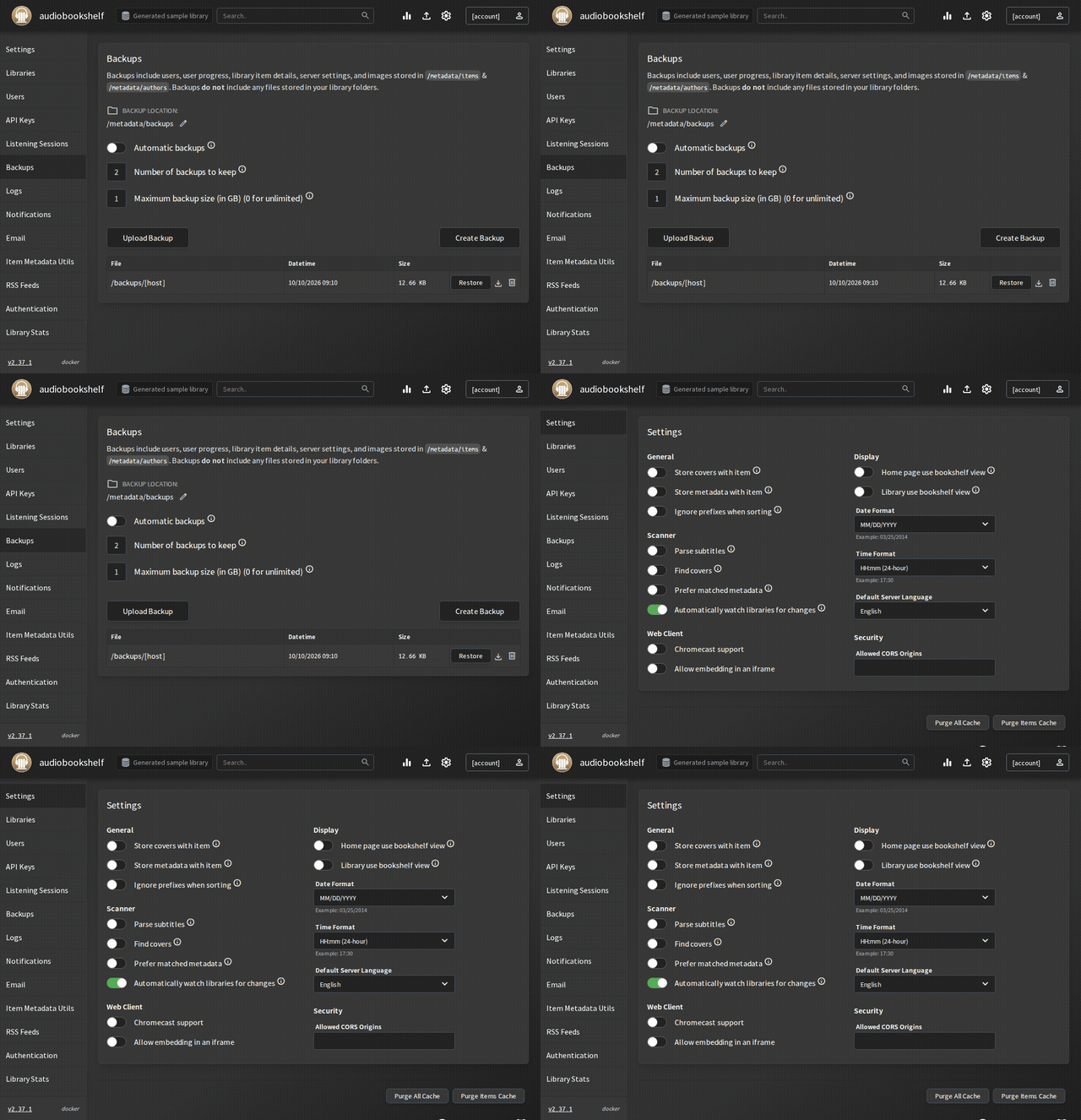
Checking Audiobookshelf backup coverage means checking server state and audiobook files separately. The official documentation says built-in backups include the database and cover images stored in the metadata directory. They exclude media files and covers stored with library items. Audiobookshelf server management documentation
I run Audiobookshelf in Docker on my Unraid box and keep audiobook files I own there. Those give me two sets of data to inventory: application state and book folders.
The screenshots come from a throwaway test install, not my live one.
Step 1: Check the built-in backup
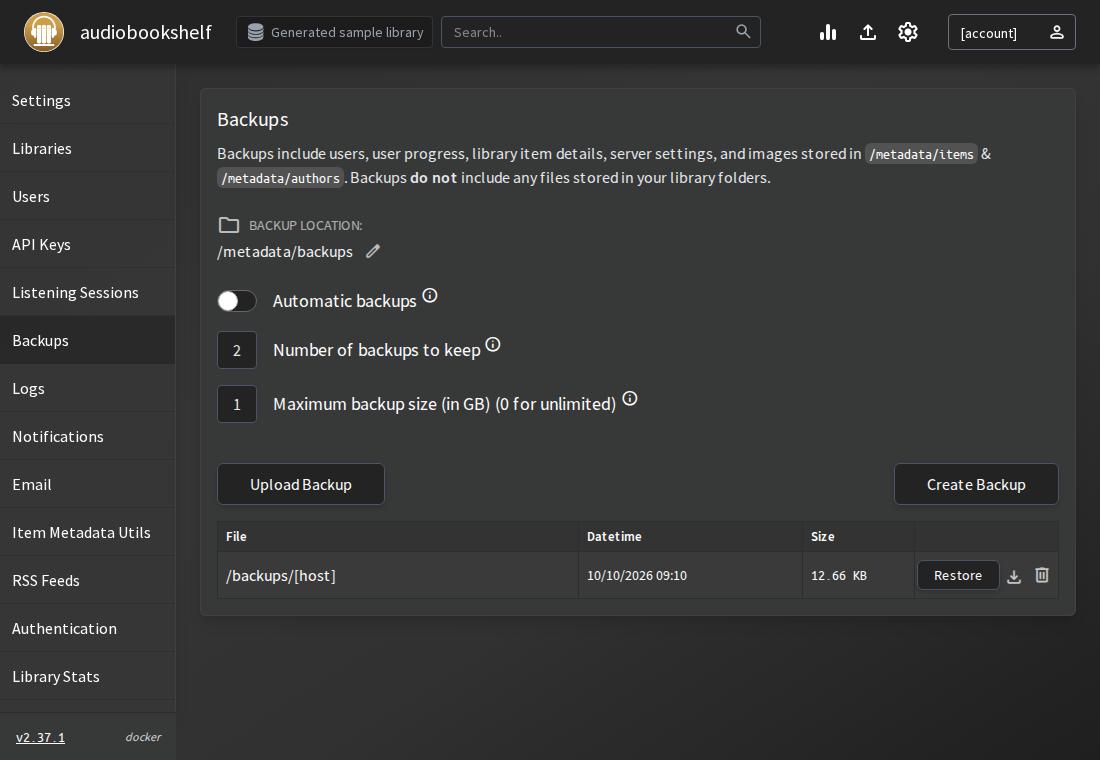
Open the server settings and select Backups. Record:
- The date of the newest backup.
- The destination shown in your installation.
- The schedule, if enabled.
- The retention limits shown on the page.
Check the destination against your container mounts. Record whether the backup destination is a different storage device from the source.
Inspect a downloaded archive with an archive viewer. Compare its contents with the backup documentation for your installed version. Look for database and image data rather than assuming the archive contains your library.
Step 2: Separate server state from audio files
Check each library’s folder paths in Audiobookshelf. Match them to host folders or Docker volumes in your container settings.
The official Docker documentation describes these locations:
| Container location | What it holds | What to check |
|---|---|---|
/config |
SQLite database and migration scripts | Which backup covers application state |
/metadata |
Book metadata, cover and author images, logs, and backups | Which files your chosen backup includes |
/audiobooks |
Audiobook files, if mounted here | Whether every book folder has a separate copy |
/podcasts |
Podcast files, if mounted here | Whether retained episodes have a separate copy |
Media mounts can use other names. Follow your actual library paths. For a bind mount, the host path identifies the source folder and the container path identifies where the app sees it. Audiobookshelf Docker documentation
Include whole book folders in the media backup. Copying only .mp3 or .m4b files can leave companion covers and metadata behind.
For each folder, record the backup job, destination, and last successful copy. A folder without a matching job is a gap in the plan.
Step 3: Choose how to protect both parts
These methods can work together.
| Method | Coverage | Main limit |
|---|---|---|
| Built-in state backups | Database and metadata-directory cover images, as documented | Excludes media and covers stored with library items |
| Separate media backups | The selected book folders and companion files | Does not cover application state unless selected separately |
| Stopped-container backups | The host folders or volumes you select | Needs downtime and misses any omitted mount |
The first row follows Audiobookshelf’s documented backup scope. For Docker volumes, use Docker’s backup and restore documentation when planning the copy.
For a plain copy of application folders, stop Audiobookshelf and keep it stopped until copying finishes. SQLite warns that copying a database during a transaction can produce an inconsistent copy. Include the application folders rather than selecting only the database file. SQLite backup cautions
Keep copies on separate storage and retain older versions. Check whether your backup job preserves deleted files long enough to recover an accidental deletion.
Step 4: Check what you could recover
Review the copies:
- Confirm that the state archive opens.
- Find a known audiobook in the media backup.
- Check that all its tracks and companion files are present.
- Record the server version and container mount settings.
- Plan a recovery test in a disposable installation with separate writable folders.
During that later test, check library details, listening progress, covers, and playback from copied media. Follow the restore instructions for the installed version.
Common questions
Will it backup audiobooks?
No. Audiobookshelf’s built-in backup excludes the audiobook files themselves. Back up the folders containing your owned audio separately. Documented backup coverage
Why is my Audiobookshelf backup getting bigger?
Size alone does not show the cause. Compare an older archive with the newer one and identify which entries grew. Check database and image sizes first. Growth does not prove that audiobook files were added to the backup.
Are the original files in the items cache a media backup?
They are temporary media copies made by the Encoder or Metadata Embed tools when their backup option is selected. Audiobookshelf documents that the items cache is unsuitable for long-term storage and excluded from database backups. Use a separate media backup. Audiobookshelf cache documentation
Browse self-hosting guides for other server tasks, or use the guide index to find another guide.
../self-hosting/ every Self-hosting guide