Is My Mac SSD Dying? What the Health Numbers Mean
gist Probably not. Only available spare and media errors can say otherwise.
You stopped about in. Jump back
contents
Every SSD keeps a running log of its own health. On a Mac you don’t see it unless you go looking, and when you do, the numbers can look alarming: 89% life left, 900 unsafe shutdowns, 300 TB written. Most of the time they’re fine, and only two of them decide whether to worry.
How to check SSD health on a Mac
macOS shows only a pass/fail summary. In Disk Utility, select the physical drive (the top line, not the volume) and look for “S.M.A.R.T. status: Verified”. That tells you only that the drive hasn’t raised its own failure flag.
For the full numbers you need an app that reads the drive’s health log, or the free command-line tool smartctl (brew install smartmontools, then smartctl -a disk0). oDisk, my app, shows every number below with a Good / Caution / Bad verdict and is a free download for now. DriveDx does the health part too. oDisk isn’t affiliated with Crystal Dew World, the maker of CrystalDiskInfo.
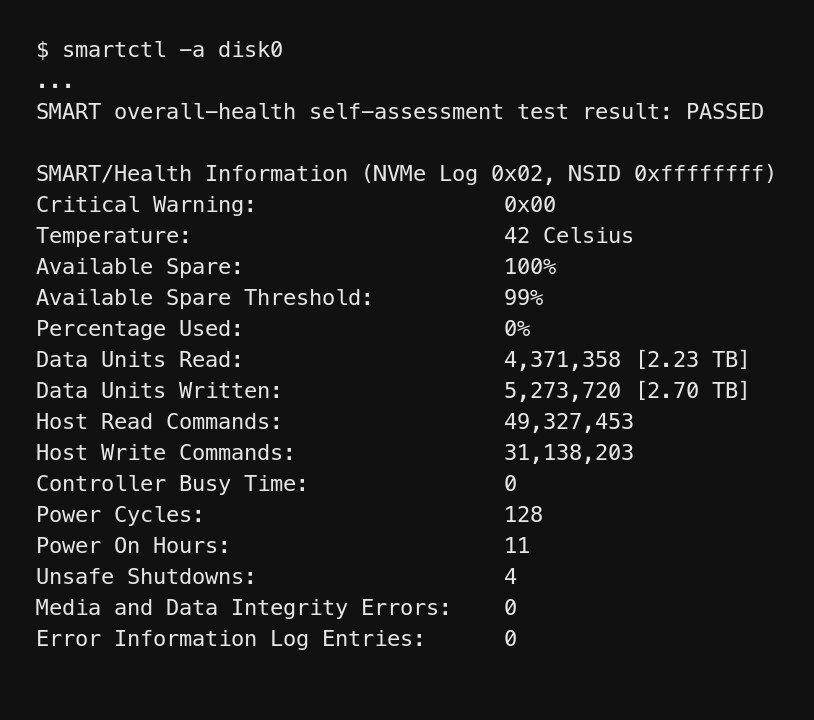
This is what smartctl -a disk0 prints for the internal SSD of an M4 Mac mini. Each number is explained below.
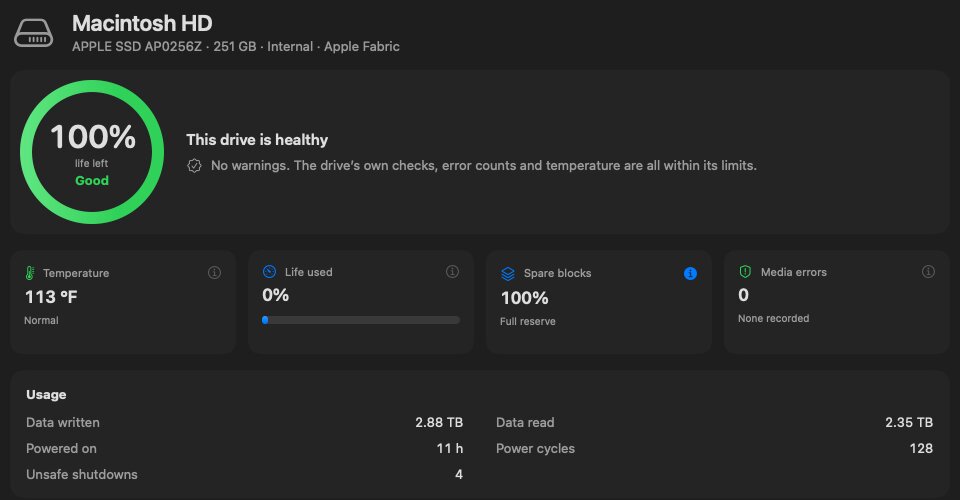
In oDisk the same log shows up as a verdict, four key numbers and a usage list:
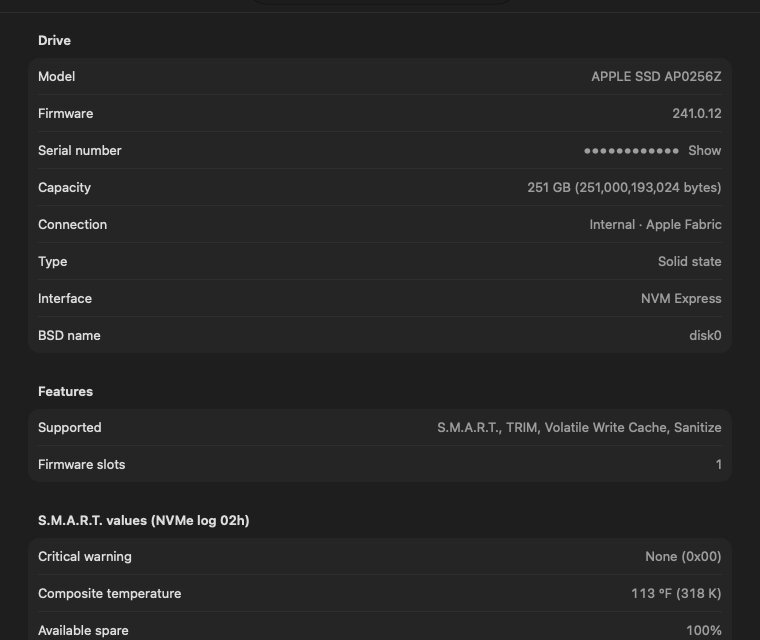
Every raw value is on the Details page:
Percentage used (life used)
This is the drive maker’s estimate of how much of the rated write endurance has been used. A new drive shows 0%. 100% means the drive has reached its rated endurance, which is a warranty figure, not a failure point. Most drives keep working well past it.
Rule of thumb: under 50% after several years is normal. If it climbs fast, find out what’s writing so much (Activity Monitor › Disk shows it per app).
Available spare and its threshold
SSDs keep reserve blocks to replace worn ones. Available spare is how much of that reserve is left, and the threshold is the level where the drive itself says to replace it. It should stay above the threshold; this and media errors are the two numbers to watch.
Apple’s internal SSDs report a threshold of 99%, so a reading of 100% is normal. A drop below the threshold is a reason to back up and plan a replacement.
Media errors
These count data the drive could not read back correctly and couldn’t fix. It should be 0. One or two errors aren’t an emergency, but check your backups.
Data written (TBW)
Total data written over the drive’s life, usually shown in TB. Compare it with the drive’s rated endurance (TBW). A 1 TB consumer SSD is commonly rated around 600 TBW. Apple doesn’t publish ratings for its internal SSDs, which is why “percentage used” is the better guide on a Mac.
Power-on hours and power cycles
How long the drive has been powered and how many times it’s been switched on. Useful context for the other numbers; neither one is a health problem on its own.
Unsafe shutdowns
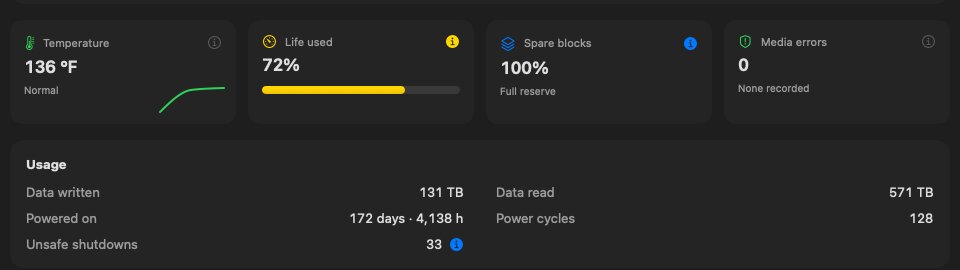
The number of times power was cut without a clean shutdown: a crash, holding the power button, a battery running flat, or unplugging an external drive without ejecting it. Hundreds over a few years is common, and modern SSDs are built to survive them. They only matter if they come with media errors.
Temperature
SSDs slow themselves down when they get too hot, usually above 70 °C. If an external drive’s copy speed drops sharply during long transfers, heat (or a slow cable) is the usual cause.
When to worry
- Available spare below the threshold, or the drive’s critical warning flag set: back up now and plan a replacement.
- Media errors above zero: check backups, keep an eye on the count.
- Life used above 90%: the drive is near its rated endurance. Back up and budget for a replacement, but it may run for a long time.
- Everything else, including high unsafe-shutdown counts and big TBW numbers on their own: fine.
Common questions
Is there CrystalDiskInfo for Mac?
Yes: oDisk, my app, reads the same drive health log on a Mac and runs CrystalDiskMark-style speed tests too, in one app. It’s a free download from orgista.com for now. The original CrystalDiskInfo is Windows-only; DriveDx and the free smartctl command-line tool are other Mac options.
Can I check the health of an external SSD on a Mac?
Often yes. Many USB and Thunderbolt NVMe drives, including the Samsung T7, expose their health log to macOS. Some SATA enclosures don’t pass it through.
My M1 Mac shows 5% used after two years. Is that bad?
No. At that rate the rated endurance would last decades.
Check your own drive
oDisk, my app, reads all of these values for internal and external drives, with a verdict and an explanation for each one, and runs CrystalDiskMark-style speed tests too.
../mac/ every Mac guide